Turn a run screenshot into a running shoe share card
Your run screenshots, the shoes you wore and a few stats worth sharing.
Published
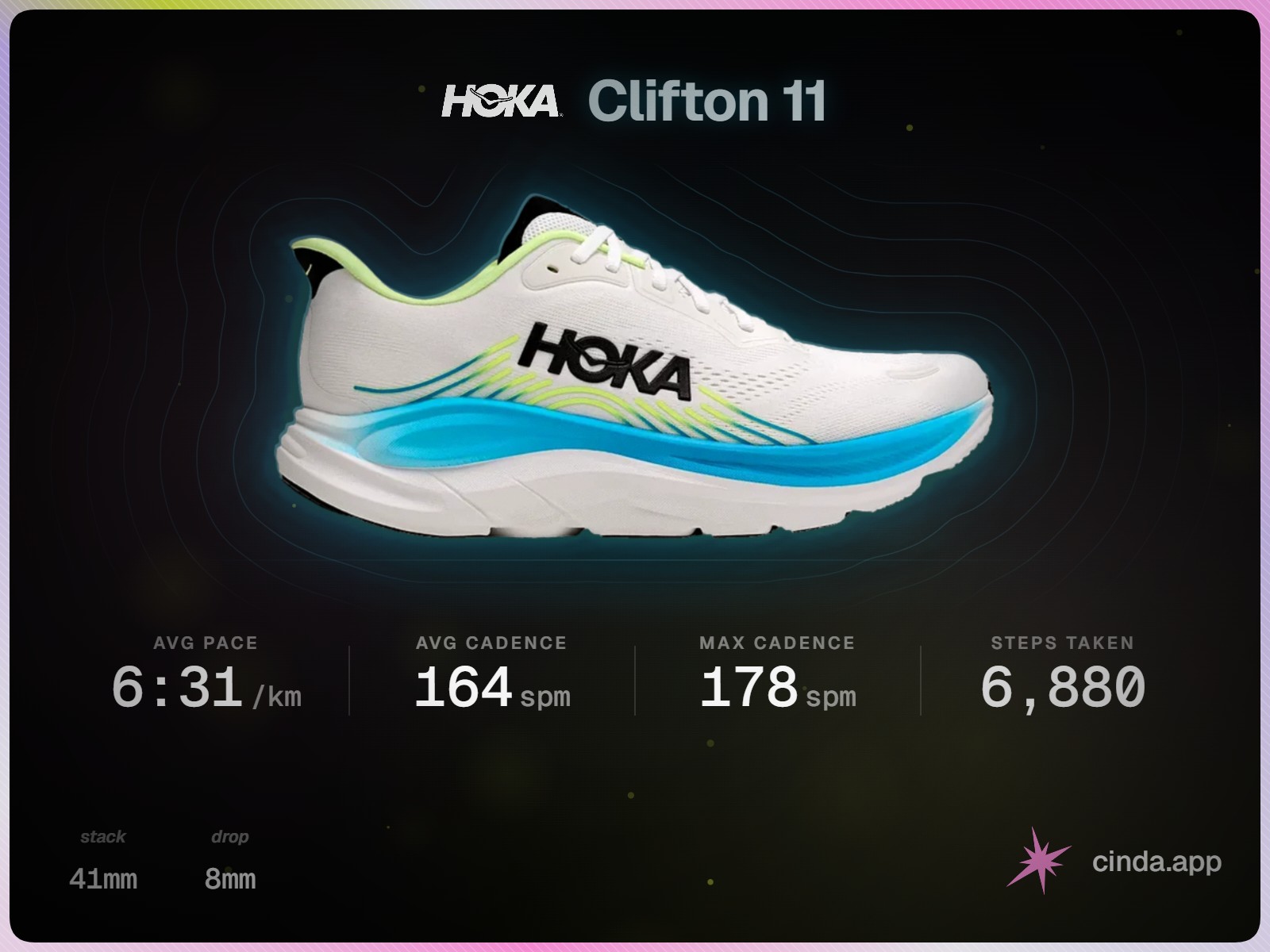
You can turn screenshots of a completed run into a shoe-focused share card with Cinda Cards. Add your screenshots, choose the shoes you wore, check the numbers and download the image. The public tool is free and does not need an account.
The card puts your shoes and a few useful stats together. It suits the moment when you want to show what you ran in, rather than post another screen full of graphs. You can use screenshots from the running app you already use, without connecting that account to Cinda.
What to screenshot
Open the completed activity in your running or watch app. Start with the summary screen, then look for the screens containing the stats you want to share. Cards accepts up to three screenshots for the same run, so you can include a separate cadence or running-dynamics screen if the app keeps those elsewhere.
Keep the labels and units visible. A number like 5:20 is ambiguous without knowing whether it means pace or elapsed time. If you want pace per mile on your card, check the units in the tool as well as the original screenshot.
- Use clear screenshots with readable text, rather than a photograph of your watch at an angle.
- Keep all the screenshots from one completed run. Mixing sessions makes the result harder to check.
- Crop away names, maps, notifications and anything else you do not want processed. Leave the stat labels and units in the crop.
Screenshots are processed by Cinda's AI provider to read the information. That is different from making an image entirely on your device. The privacy policy explains the processing and service providers.
Make the card
Open cards.cinda.app and choose Make yours now. You can upload your images or paste them where your browser supports it. If pasting is blocked, use the upload option instead.
The two checks happen before you prepare the final card.
- Add the run screenshots.The tool reads the labels and numbers.
- Choose the actual shoe.Search for the model and version you wore.
- Check and select the stats.Correct any misread value, then pick up to four.
- Prepare and share.Generate the image, then share or download it.
Choose the right shoe and version
Search the catalogue for the shoes you wore. Try the model name without the colourway if the first search returns nothing. Check the version carefully: similar names do not mean the same shoe.
If you are signed in and have shoes in your rotation, you can choose from those too. If your model is missing from the catalogue, Cards cannot produce its matching shoe image. Avoid choosing a different model just to fill the space.
Keep the stats that tell the story
Cards lets you select up to four supported shoe-related stats. Depending on what your screenshots contain, these can include pace, cadence, power, steps, stride length, ground-contact time or vertical bounce. A useful card does not have to fill every available slot.
The demonstration above uses four values that were available in its sample run. For your own run, choose the figures you actually want to discuss. If cadence is the interesting part of the session, it can earn a place alongside pace without adding every other measurement.
The current card is focused on shoes and running mechanics. It does not show distance, duration, elevation or heart rate as card stats. Some of those figures can be read from a screenshot for other parts of Cinda, but that does not make them selectable for this design.
Check the numbers before you share them
Compare the extracted values with the original screenshots. Look especially closely at pace units, decimal points and average versus maximum figures. You can edit the values shown in the tool before generating the image.
If a stat is missing, check whether it is both visible in your screenshot and supported on the card. Adding a clearer screenshot may help with a reading problem. It will not make an unsupported measurement appear as a card option.
A card records what the activity reported. It cannot show that a shoe caused a faster pace, changed your running form or made a workout better. Route, effort, weather and the way your device measures a run all complicate that comparison.
Prepare the image, then download or share it
Once your shoe and stats are ready, choose Prepare image. The public tool does not show an output preview in the builder. When preparation finishes, choose Share or download image to open your device's share sheet or download the file, depending on browser support.
Open the saved image and give it a last check. You can then add it to the photos on a run post or upload it wherever you normally share your running. Cards creates an image file; it does not publish to your social accounts for you.
There is also a caption you can copy. Change it to say what happened on the run, whether that was a comfortable recovery outing or a workout you had been looking forward to. The image supplies the shoe and numbers; your words supply the context.
Does this update my shoe mileage?
The public Cards tool does not log the run in your Cinda rotation. It is a way to make an image, with no activity-account connection or automatic mileage synchronisation.
Inside the main app, the rotation's screenshot-sharing flow has a separate optional Log this run switch. Check that flow's shoe, distance and date before using it, especially if you have already recorded the run. Preparing an image alone does not add mileage.
If you want the wider picture of the pairs you own, the introduction to Cinda explains rotation management, manual mileage and choosing a shoe for a planned session. If you just want a card today, open Cards and start with your run screenshots.